
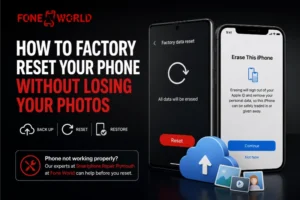



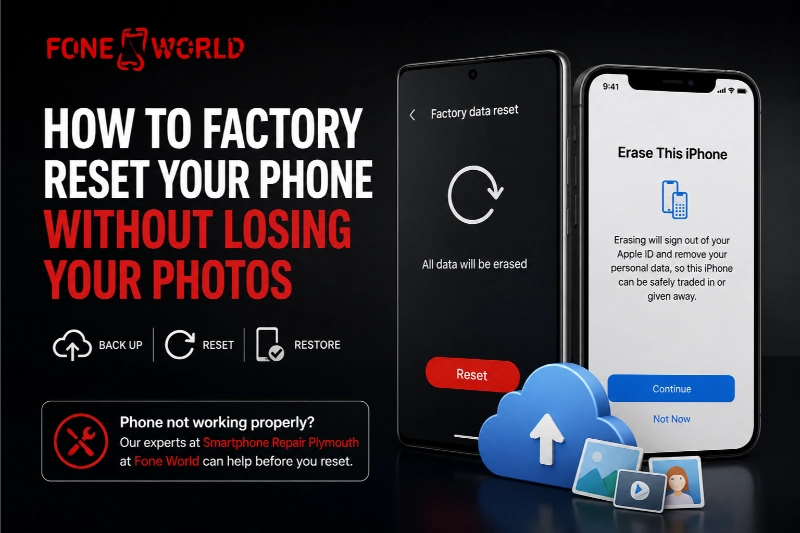
You have decided to reset your phone. Maybe it is running slow, freezing randomly, or you want to sell it. Whatever the reason, the first thought most people have is the same: “What happens to my photos?”
That fear is completely valid. A factory reset wipes everything. Three years of memories, screenshots, and videos could disappear in minutes if you go in without a plan.
Here is the good news. Knowing how to factory reset your phone safely without losing your photos is not complicated once you follow the right steps. Thousands of people reset their phones every day without losing a single file.
This guide covers Android and iPhone, step by step, including what to back up, what gets deleted, what does not, and what to do after. If your phone has a hardware fault making backup difficult, the team at “Smartphone Repair Plymouth” at Fone World can get it working before you start.
What Does a Factory Reset Actually Do?
A factory reset returns your phone to the state it was in when it left the factory. Think of it as wiping the slate completely clean. Everything stored on the device’s internal memory gets deleted. That includes photos, videos, apps, messages, contacts, call history, and settings.
Data That Gets Deleted
Here is exactly what a factory reset removes:
- Photos and videos saved to internal storage
- Downloaded files and documents
- App data and app settings
- Text messages and call logs
- Wi-Fi passwords and Bluetooth pairings
- Home screen layouts and wallpapers
- Accounts added to the device
Data That Can Be Restored
The key phrase here is “can be restored.” Nothing comes back automatically unless it was backed up before the reset.
- Photos synced to Google Photos or iCloud before the reset
- Contacts saved to your Google or Apple account
- App data backed up through Google Backup or iCloud Backup
- Messages backed up through Google Drive or iCloud
Will a Factory Reset Delete Your Photos?
This is the question everyone actually wants answered. The honest reply is it depends entirely on whether your photos are backed up to the cloud.
A factory reset deletes everything from the phone’s internal storage. But if your photos have been syncing to Google Photos or iCloud, they are not just on your phone. They are stored in the cloud and remain safe.
When Photos Are Safe
Your photos survive a factory reset when:
- Google Photos sync was switched on and had completed
- iCloud Photos was enabled and fully uploaded
- Photos were copied to a computer before the reset
- Files were saved to Google Drive or another cloud service
When Photos Can Be Lost
Photos get permanently deleted when:
- Cloud backup was never switched on
- Sync was paused or had not completed before the reset
- The phone’s storage was full, preventing the upload
- Photos were stored only on internal memory with no backup
One of the most common mistakes seen at “phone repair Plymouth” counters is users assuming their photos are backed up when the sync was actually paused due to low storage or a Wi-Fi timeout.
Essential Checklist Before Resetting Your Phone
Before you touch the reset option, run through this list. Skipping even one step can cost you data that cannot be recovered.
Verify Cloud Backup
Do not just assume backup is on. Open Google Photos or iCloud and check the status.
On Android, open Google Photos, tap your profile picture, and look for a “Backup is on” message. If it says “Waiting for Wi-Fi” or “Backup paused,” connect to Wi-Fi and wait for it to finish completely.
On an iPhone, go to Settings, tap your name, tap iCloud, then iCloud Backup. Tap Back Up Now. Watch the progress bar and wait until it confirms the backup is complete.
Save Important Passwords
After a reset, you will need to log back into every app. Write down or store passwords for email, banking apps, social media, and streaming services before you begin.
Do not forget your Apple ID or Google account password. You will need them during setup.
Check Battery Levels
Keep both the reset process and the setup process in mind. Make sure your phone is above 80% battery, or plug it in before starting. A dead battery mid-reset can corrupt the device.
Update Software
Run any pending software updates before the reset. An updated OS reduces the chance of setup errors and compatibility problems after the restore.
How to Back Up Photos on Android
This is the most important step for anyone doing a factory reset on an Android phone. Do not skip the verification step. Many people back up but never confirm the backup actually finished.
Google Photos Backup
- Open the Google Photos app.
- Tap your profile picture in the top right.
- Tap “Photos settings,” then “Backup.”
- Make sure “Backup” is toggled on.
- Tap “Back up device storage” if photos have not yet synced.
- Wait for the confirmation that says “Backup is on. Your library is backed up.”
Only trust it when you see the completed confirmation. If it shows a number of photos waiting to upload, wait until it reaches zero.
Google Drive Backup
For other files like documents, downloads, and WhatsApp media:
- Open Google Drive.
- Tap the plus button and upload specific folders.
- Alternatively, go to Settings, then System, then Backup, and switch on Google One backup.
Computer Backup
Connect your Android to a computer via USB cable. Select “File Transfer” when prompted. Drag the DCIM folder (which contains your camera photos) to your computer. This is the most reliable backup method for anyone with a large photo library.
How to Back Up Photos on iPhone
Backing up photos before a factory reset on an iPhone is straightforward, but the 5GB free iCloud limit catches many people out. Check your storage before starting.
iCloud Photos
- Go to Settings and tap your name.
- Tap iCloud, then Photos.
- Switch on “iCloud Photos.”
- Stay on Wi-Fi and leave your phone charging until the upload finishes.
- Log into icloud.com on a browser from another device to visually confirm your photos are there.
Mac Backup
Connect your iPhone to a Mac. Open Finder. Select your iPhone from the sidebar. Click “Back Up Now.” This creates a full device backup that includes photos, messages, and app data.
Windows Backup
Connect your iPhone to a Windows PC. Open iTunes. Click the iPhone icon, then “Back Up Now.” Select “Encrypt Local Backup” to include passwords and health data. This is a solid offline backup that does not depend on iCloud storage.
How to Factory Reset an Android Phone Safely
Once you have confirmed your backup, you are ready to factory reset your Android phone. The steps vary slightly by brand, but the process is the same everywhere.
Samsung Galaxy Steps
- Open Settings.
- Tap “General Management.”
- Tap “Reset.”
- Tap “Factory Data Reset.”
- Scroll down and tap “Reset.”
- Enter your PIN or password.
- Tap “Delete All” to confirm.
The phone will restart. This takes 5 to 10 minutes on most Samsung Galaxy models.
Google Pixel Steps
- Open Settings.
- Tap “System.”
- Tap “Reset Options.”
- Tap “Erase All Data (Factory Reset).”
- Tap “Reset Phone.”
- Enter your PIN and tap “Erase Everything.”
Other Android Devices
Most Android phones follow a similar path. Go to Settings, search for “Reset” using the search bar, and look for “Factory Data Reset” or “Erase All Data.” The option is almost always in the System or General Management section.
One important note: most Android devices are protected by Factory Reset Protection (FRP). After the reset, you will need to sign into the same Google account that was previously on the device. If you cannot remember your account details, the phone may become locked. This is a Google security feature, not a fault with the device.
How to Factory Reset an iPhone Safely
How to factory reset your phone safely without losing your photos on an iPhone follows a clear sequence. Apple has streamlined this process significantly in recent years.
Turn Off Find My iPhone
If you are resetting to sell or give away the phone, disable Find My iPhone first. Go to Settings, tap your name, tap “Find My,” then “Find My iPhone,” and toggle it off. This prevents activation lock, which can make the phone unusable for the next owner.
Reset Device
- Open Settings.
- Tap “General.”
- Scroll down and tap “Transfer or Reset iPhone.”
- Tap “Erase All Content and Settings.”
- Tap “Continue.”
- Enter your iPhone passcode.
- Tap “Erase iPhone.”
The phone will display a progress wheel and restart to the Hello screen. This process takes 5 to 15 minutes.
Restore Data
When the iPhone restarts, follow the setup steps until you reach “Apps & Data.” Select “Restore from iCloud Backup” and sign into your Apple ID. Choose the most recent backup. Your photos, contacts, and app data will restore, though larger apps may take additional time to download.
What Happens After the Reset?
Many people complete the reset but feel anxious during setup. Here is what to expect.
Restoring Photos
Photos stored in Google Photos or iCloud do not re-download immediately. They appear as thumbnails first and download fully as you view them. This is normal and does not mean anything is missing.
Reinstalling Apps
Apps re-download from the App Store or Play Store automatically if you restore from a backup. If you set yourself up as new, you will need to reinstall them manually. Paid apps return for free since they are tied to your account.
Common Factory Reset Mistakes to Avoid
These are the mistakes seen most often, both at repair shops and on tech forums in 2026, but Fone World’s certified technicians have fixed hundreds of such errors.
Incomplete Backups
The number one mistake. A backup that is 90% complete is not a complete backup. Always wait for the full confirmation before proceeding. Photos at the top of the upload queue are often the most recent, which means the newest memories disappear first if the sync cuts out.
Forgotten Passwords
Many people reset their phones and then find themselves locked out of their own accounts during setup. Write down your Google account email and password, Apple ID and password, and any two-factor authentication recovery codes before the reset.
Interrupting the Reset Process
Do not touch the phone once the reset begins. Do not press buttons, pull the SIM card, or switch off Wi-Fi. An interrupted reset can corrupt the operating system and leave the phone in a boot loop. If that happens, our “smartphone repair Plymouth” team at Fone World can run diagnostics and often recover the device.
Not Removing Activation Locks
Selling a phone without disabling Find My iPhone or Google’s Factory Reset Protection causes problems for the buyer. Always sign out of your Apple ID or Google account before handing the device on.
Troubleshooting Backup and Restore Issues
Things do not always go smoothly. Here is what to do when they do not.
Missing Photos After Restore
Open Google Photos or iCloud and check there directly. Photos often need time to download to the device after a restore. If photos are visible in the cloud but not on the device, give it an hour and check again.
If photos are missing from the cloud entirely, they were likely never backed up. This is unfortunately a permanent loss unless a computer backup was made.
Backup Errors on Android
If Google Backup shows an error, check that you have enough Google Drive storage. Google provides 15GB free, but if your Gmail and Drive are full, the phone backup has no room. Free up Google Drive storage or upgrade the plan, then try again.
Cloud Sync Problems on iPhone
If iCloud backup fails, check your iCloud storage under Settings, then your name, then iCloud. If storage is full, old backups from previous devices may be taking up space. Delete old backups from the Manage Storage screen and try again.
When to Seek Professional Help
Sometimes a factory reset is not the right solution. If the phone is crashing because of a hardware fault, a reset will not fix it. If the screen is cracked and you cannot navigate to the backup settings, you need the screen repaired first.
Common situations where professional help makes more sense than a DIY reset:
- Phone will not power on at all
- Screen is unresponsive and backup cannot be confirmed
- Device is stuck in a boot loop after a reset attempt
- Photos need recovering after an accidental reset
Our “iPhone repair” and “Samsung phone repair Plymouth” teams at Fone World handle these situations regularly. Rather than risk losing data permanently, bring the device in for a proper diagnosis first. The “data recovery” service has helped many people retrieve photos they thought were gone for good.
If your device has taken water damage and you are unsure whether it is safe to proceed with a reset, our “water damage phone repair” service can assess it before you make the situation worse.
Conclusion
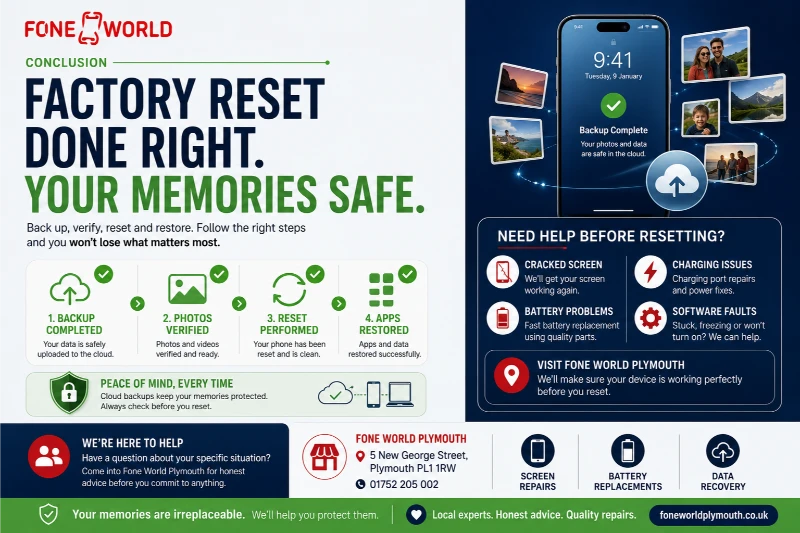
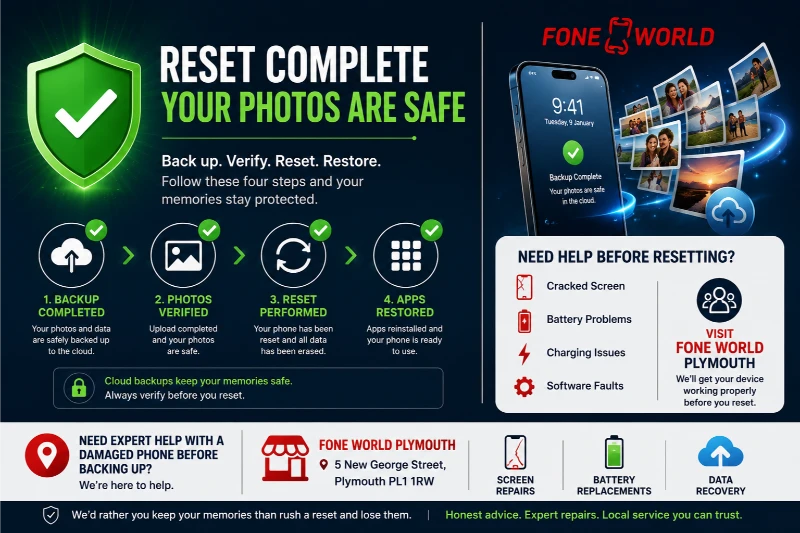
Knowing how to factory reset your phone safely without losing your photos comes down to one rule: always confirm the backup is complete before you proceed.
Back up to Google Photos or iCloud, verify the upload finished, write down your account passwords, and then follow the steps for your device. Whether you are resetting a Samsung Galaxy, a Google Pixel, or an iPhone, the process is manageable when taken in the right order.
In 2026, cloud backup tools are better than ever, but they only work if you actually use them and check that they have completed the task. A quick two-minute check before a reset can save hours of regret afterwards.
If your phone has a fault that makes the backup process difficult, whether it is a cracked screen, a charging problem, or software that will not respond, the team at Fone World in Plymouth is here to help. Visit the “iPhone repair” or “battery replacement Plymouth” service to get the device working properly before you reset. We would rather you keep your memories than rush a reset and lose them.
Have a question about your specific situation? Come into Fone World at 5 New George Street, Plymouth, and we will give you an honest answer before you commit to anything.