



You try to turn your phone on… the Apple logo appears… and just stays there. No progress. No response. That moment hits, is everything gone? If your iPhone stuck on Apple logo, it usually means the system didn’t load properly, but that doesn’t mean it’s dead. In most cases, this can be fixed without wiping your data if you follow the right steps, in the right order.
Don’t rush into resets. Start with the safest fix and move forward smartly.
Quick Answer
If your iPhone is stuck on the Apple logo, it usually means the system failed to load properly. Most of the time, it’s a software issue but in some cases, it can point to a hardware fault.
What you can try first:
- Force restart (quick reset, no data loss)
- Recovery Mode (repairs system files)
- DFU Mode (deep restore if nothing else works)
About your data:
Some fixes are safe. Others especially restore options can erase everything. That’s why the order matters.
Why Is My iPhone Stuck on Apple Logo? (Real Causes)
When an iPhone frozen on Apple logo screen won’t move, it usually comes down to one thing the system couldn’t complete the startup process. The cause is either software-related or hardware-related.
Software Causes (Most Common)
These are fixable in most cases:
- Failed iOS update
An interrupted or incomplete update can break the startup sequence - Corrupted firmware
System files don’t load properly, so the device gets stuck on boot - App or system crash
A serious crash can trigger a boot loop where the Apple logo keeps appearing
Hardware Causes (Less Common, More Serious)
If software fixes don’t work, look here:
- Battery issues
Unstable power can prevent proper startup - Logic board damage
Internal component failure affecting boot process
Storage (NAND) failure
The system can’t access required data to load iOS
What This Tells You
In most real cases, this issue happens after a failed iOS update rather than hardware damage.
How Do I Fix iPhone Stuck on Apple Logo? (Step-by-Step Order)
Don’t jump straight into advanced fixes. Start simple. Most cases of iPhone stuck on Apple logo are resolved in the first two steps if you follow the right order.
Step 1 — Force Restart (Try This First)
This resets the system without deleting anything. It’s the quickest way to break a minor crash or iPhone boot loop Apple logo issue.
iPhone Model | Steps |
iPhone 8 and later | Press Volume Up → Press Volume Down → Hold Side Button until Apple logo appears |
iPhone 7 / 7 Plus | Hold Volume Down + Power Button together |
iPhone 6s & earlier | Hold Home + Power Button together |
If it works, your issue was temporary. If not, move on.
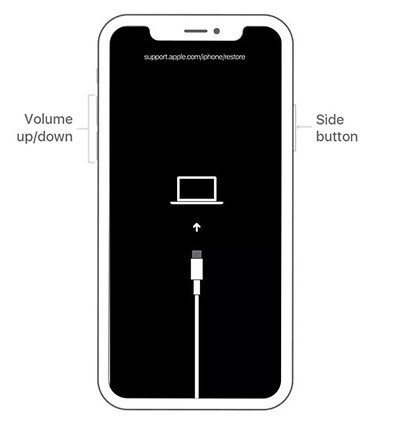
Step 2: Recovery Mode (Fix Without Data Loss First)
If your iPhone won’t boot past Apple logo, Recovery Mode repairs the system.
- Connect your iPhone to a computer
- Open Finder (Mac) or iTunes (Windows)
- Enter Recovery Mode (same button sequence as force restart, but keep holding)
You’ll see two options:
- Update → reinstalls iOS without deleting data
- Restore → wipes everything and installs fresh iOS
Always try to update first. Only restore if nothing else works.
Step 3: DFU Mode (Last Option)
Use this only if Recovery Mode fails. DFU (Device Firmware Update) goes deeper and fixes serious firmware corruption.
- Screen stays completely black
- System is reinstalled from scratch
Important: DFU mode will erase your data.
Recovery Mode vs DFU Mode
Feature | Recovery Mode | DFU Mode |
Screen | Shows recovery screen | Completely black |
Data safety | Update option may save data | Full data wipe |
Use case | System errors | Deep firmware issues |
Risk level | Low | Medium |
What Matters Here
Stick to the sequence instead of jumping between fixes. Most people go straight to restore and lose data unnecessarily.
Will I Lose My Data While Fixing This?
This is the main worry, and honestly, it depends on the method you use. If your iPhone stuck on Apple logo fix without losing data is the goal, the order of steps matters.
What’s Safe (No Data Loss)
- Force restart
Doesn’t touch your data. Just restarts the system - Recovery Mode (Update option)
Reinstalls iOS without deleting photos, apps, or files
What Can Erase Data
- Restore in Recovery Mode
Wipes the device and installs a fresh system - DFU Mode restore
Complete reset, everything is deleted
Simple Rule to Follow
Start with safe options before moving to deeper fixes.
Only move to restore if nothing else works.
If you have an iCloud or iTunes backup, you can recover everything after a reset, but without a backup, data loss is permanent.
What If iPhone Got Stuck After iOS Update?
This is one of the most common situations. If your iPhone stuck on Apple logo after iOS update fix is what you’re looking for, the issue usually starts with an incomplete or unstable update, not a hardware problem.
Why Updates Sometimes Fail
- Interrupted installation
Low battery, weak connection, or a pause during update - Corrupted system files
The update doesn’t install cleanly, so iOS can’t boot properly - Storage or compatibility issues
Not enough space or conflicts with existing data
How to Fix It Without Losing Data
Start safe:
- Try a force restart first
- Then use Recovery Mode → Update (not restore)
- Avoid jumping straight to full reset
This usually resolves iPhone stuck after update problems without wiping your data.
When You Should Wait vs Fix
- Wait (24–48 hours)
If the phone is still processing after update (rare, but possible) - Fix immediately
If it’s completely stuck on the Apple logo with no progress
What This Means
Only move to deeper fixes if basic recovery steps don’t work.
Is It a Software Issue or Hardware Problem? (Decision Section)
Before you try anything else, figure this out. If your iPhone not turning on Apple logo issue is software, you can fix it yourself. If it’s hardware, no setting will solve it.
Signs It’s a Software Issue (Fixable)
- The phone responds to force restart
- You can enter Recovery Mode or DFU Mode
- No recent drop or physical damage
- The issue started after an update or app problem
In most cases, this means a system crash or firmware issue, not hardware failure. If the device still responds to Recovery Mode, it’s almost always a software issue.
Signs It’s a Hardware Problem (Needs Repair)
- The issue started after a drop or impact
- The device gets unusually hot
- No response to restart or recovery attempts
- Screen stuck with no change at all
This points to problems like logic board damage or storage failure.
Quick Decision
If the phone still responds → try fixes
If it doesn’t respond → it’s likely hardware
Can I Fix iPhone Stuck on Apple Logo Without a Computer?
Short answer: only in limited cases.
If your iPhone stuck on Apple logo, the only thing you can try without a computer is a force restart. It works when the issue is minor, like a temporary crash or a small system glitch.
What You Can Do Without a Computer
Force restart
This can break a simple freeze or iPhone restart loop issue
No data loss, quick to try
Where It Stops Working
If the phone stays stuck after restart, that’s your signal:
- The system needs repair
- iOS may need to be reinstalled
- Recovery Mode or DFU Mode is required
And both need a computer (Finder or iTunes)
Simple Reality
Without a computer, your options are very limited.
Force restart is worth trying, but proper fixes usually need system-level repair tools.
Best Tools to Fix iPhone Stuck on Apple Logo (Comparison)
If basic fixes don’t work, tools can help repair the system properly. The right option depends on whether you want a free method or something quicker and easier.
Tool Comparison
Tool | Data Safe Option | Ease of Use | Best Use |
iTunes / Finder | Yes (Update) | Medium | Official restore & updates |
ReiBoot | Yes | Easy | Quick fix without technical steps |
Dr.Fone | Yes | Easy | Guided repair + recovery options |
3uTools | Partial | Medium | Advanced users, flashing firmware |
What You Should Know
- iTunes / Finder → Free and reliable, but manual steps required
- ReiBoot / Dr.Fone → Easier, designed for users who don’t want complexity
- 3uTools → More control, but not beginner-friendly
If your iPhone stuck on Apple logo fix without iTunes is what you’re looking for, third-party tools are the alternative, just use trusted ones.
Quick Decision
- Want free + official → use iTunes or Finder
- Want simple + fast → use ReiBoot or Dr.Fone
- Want control → use 3uTools
What Causes Boot Loop (Apple Logo Flashing)?
If the Apple logo keeps appearing and disappearing, that’s a boot loop. The phone is trying to start, and failing each time.
Common Causes
- Software loop
A system crash or iPhone boot loop Apple logo issue stops iOS from loading properly - Storage problems
Full or failing storage can prevent the system from completing startup - Update failure
An incomplete update can leave the system stuck in a restart cycle
What This Means
This isn’t random. The system is stuck trying to load again and again until the root issue is fixed.
When Should You Go to Apple or a Repair Shop?
If nothing has worked so far, stop trying random fixes. At this point, it’s no longer a basic software issue.
When You Should Seek Repair
- Recovery Mode and DFU didn’t fix it
- The phone doesn’t respond at all
- Issue started after a drop or physical damage
- Still stuck even after a full restore
This usually points to a hardware fault, not software.
When You Should Seek Repair
When an iPhone frozen on Apple logo screen won’t move, it usually comes down to one thing the system couldn’t complete the startup process. The cause is either software-related or hardware-related.
Cost & Time Comparison
Option | Cost Range | Time Required | Best For |
Apple Store | High | 1–3 days | Genuine repair, warranty support |
Authorized Repair | Medium–High | Same day – 2 days | Certified service |
Third-Party Shop | Medium | Few hours – 1 day | Faster, cheaper fix |
Apple vs Third-Party: What’s Better?
- Apple / Authorized → safer, original parts, higher cost
- Third-party repair → quicker and cheaper, but quality depends on the shop
Quick Decision
If your iPhone stuck on Apple logo hardware issue signs are clear, don’t waste time on more fixes. Get it checked and repaired properly.
4 Things That WON’T Fix This Problem
A lot of advice online sounds helpful, but doesn’t actually solve anything. If your iPhone stuck on Apple logo fix isn’t working, these won’t help.
Charging overnight
This has nothing to do with startup issues. Charging habits don’t cause or fix a boot problem.
Random button pressing
Pressing buttons repeatedly won’t “unstick” the phone. It either responds to a proper restart sequence or it doesn’t.
Waiting for hours
If it’s stuck, it stays stuck. This isn’t a loading delay, it’s a failure to boot.
Factory reset blindly
This is where most people mess up. Resetting without checking safer options first can wipe your data for no reason.
Reality
If the system isn’t loading, the fix has to target the system not random actions.
Real Case Study: What Actually Fixed the Issue
Problem
An iPhone 12 was stuck on the Apple logo after an iOS update. It wouldn’t move past the startup screen, even after waiting.
Diagnosis
Force restart didn’t work, but the device entered Recovery Mode. This pointed to a software issue, not hardware.
Fix
Used Recovery Mode → Update option (not restore). iOS reinstalled without deleting data.
Result
Phone booted normally within 15 minutes. No data loss. Battery and performance returned to normal.
How to Prevent This in the Future
Once fixed, you don’t want to deal with this again. Most cases of iPhone stuck on Apple logo come from avoidable issues, mainly updates and system overload.
Safe Update Habits
- Keep at least 30–40% battery before updating
- Use a stable Wi-Fi connection
- Don’t interrupt the update once it starts
Small interruptions are one of the main reasons behind iPhone stuck after update problems.
Manage Storage Properly
- Keep enough free space (at least 5–10 GB)
- Avoid filling storage completely
- Delete unused apps and large files regularly
Low storage can cause system instability during updates.
Avoid Risky Apps or Modifications
- Don’t install unknown or unstable apps
- Avoid jailbreak or unofficial modifications
- Stick to trusted sources (App Store)
These can lead to system crashes or startup issues.
Simple Rule
Keep your system stable, and these issues stay rare.
Most problems start when updates or system conditions aren’t handled properly.
Conclusion
If your iPhone stuck on Apple logo, don’t guess your way through this. Follow the order. Start with safe fixes like force restart, then move to Recovery Mode, and only use deeper methods if needed. Most of the time, this is a software issue and fixable. But if your iPhone stuck on Apple logo doesn’t respond even after proper steps, it’s likely hardware.
If it’s still stuck, it’s not software anymore. Get it checked.
Frequently Asked Questions
Why is my iPhone stuck on the Apple logo for so long?
Usually, the system failed to boot. Common reasons include a failed iOS update, corrupted firmware, or a system crash. If it doesn’t move after a few minutes, it’s not “loading,” it’s stuck.
Can I fix iPhone stuck on Apple logo without losing data?
Yes, in many cases. Use Recovery Mode → Update first. This reinstalls iOS without deleting data. Avoid “Restore” unless nothing else works.
What’s the difference between Recovery Mode and DFU Mode?
Recovery Mode repairs iOS and may keep your data (if you choose Update).
DFU Mode goes deeper; it fully reinstalls firmware and usually wipes everything.
Why did my iPhone get stuck after an iOS update?
Most of the time, the update didn’t install properly due to low battery, poor connection, or storage issues. That’s why iPhone stuck after update is so common.
How do I fix iPhone stuck on Apple logo without a computer?
You can only try a force restart. If that doesn’t work, proper fixes like Recovery Mode or DFU need a computer (Finder or iTunes).
How much does it cost to fix this issue?
- Apple Store → higher cost, original parts
- Third-party repair → cheaper, faster
- Software fixes → free (if you do it yourself)
Cost depends on whether it’s a software or hardware problem.
How do I know if it’s hardware or software?
If your iPhone responds to restart or enters Recovery Mode, it’s likely software.
If it doesn’t respond at all or started after a drop, it’s likely hardware (like logic board or storage).
Can a full storage cause iPhone boot loop?
Yes. If storage is completely full, iOS may fail to load properly, causing a boot loop or Apple logo freeze.
Is DFU mode safe to use?
Yes, but only if used correctly. It’s a deep repair method. Just remember: it usually erases all data unless you have a backup.
What’s the fastest way to fix iPhone stuck on Apple logo?
Start with force restart, then go to Recovery Mode (Update). Most issues are solved there without needing advanced steps.