
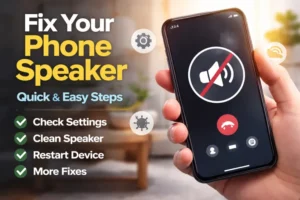
You pick up a call and hear nothing. You hit play on a video, and silence again. If your phone speaker not working problem just showed up, don’t rush to a repair shop yet. Most of the time, it’s not even a serious problem.
It’s something small a setting, dust, or a glitch you can fix in minutes. This guide cuts out the guesswork. You’ll learn how to quickly diagnose the real cause and apply fixes that actually work from basic settings to deeper troubleshooting without wasting time or money.
What you’ll learn in this guide
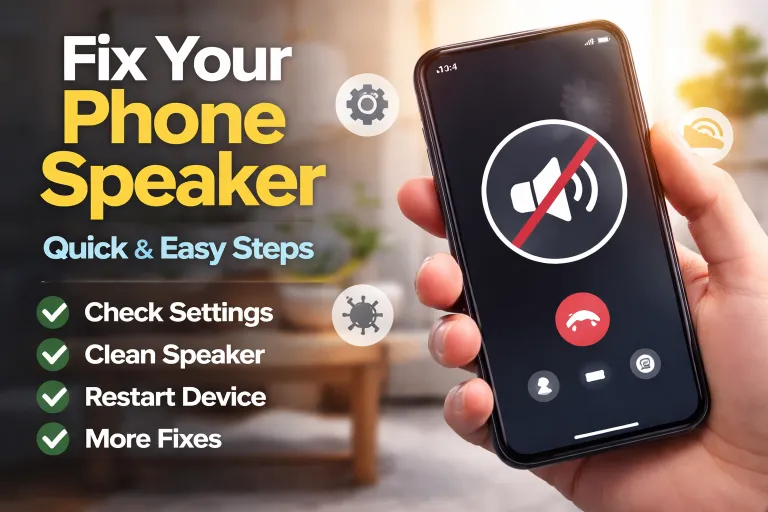
- How to instantly tell whether your speaker issue is software or hardware
- The 5 quick fixes that solve most speaker problems in under 5 minutes
- Safe, step-by-step methods to clean a clogged speaker at home
- What actually works for water-damaged speakers (and what doesn’t)
- Platform-specific fixes for Android and iPhone devices
- A clear cost breakdown: DIY vs repair shop vs replacement
- Common mistakes that can permanently damage your phone speaker
What should I do first if my phone speaker is not working?
Before you open settings or assume a hardware issue, run through this quick checklist. In most cases, a smartphone audio problem comes down to basic settings or temporary glitches not an actual speaker failure.
Five quick fixes that solve most speaker issues
1. Check all volume levels
Both Android and iPhone separate media, call, and ringtone volume. One can be muted while others are maxed. Go into settings and verify each slider.
2. Turn off Silent mode and Do Not Disturb
A physical mute switch (iPhone) or accidental DND toggle (Android) can silence everything. This catches people off guard more than anything else.
3. Restart your phone
Restart it once. Sounds basic, but it fixes more cases than it should, resets output routing, and often fixes software-related sound issues within seconds.
4. Disable Bluetooth completely
Your phone may still be connected to earbuds, a car system, or a speaker. Turn Bluetooth off and test again to rule out an audio routing issue.
5. Remove all connected accessories
Unplug headphones, USB-C adapters, or anything connected. Dust or debris in the port can trigger headphone mode stuck, which causes sound to disappear from the speaker.
Quick insight
Repair technicians follow this exact checklist before doing anything else. In fact, most “speaker problems” are not hardware failures, they’re simple settings or connection issues that take less than a minute to fix.
How do I know if my phone speaker problem is software or hardware?
Get this wrong, and you’ll waste time, and probably money too. A software issue is usually quick and free to fix, while a hardware issue often means repair. The key is identifying the pattern early, not guessing.
Signs it’s a software issue
- Speaker works sometimes but cuts in and out randomly
- Audio works with headphones or Bluetooth but not the loudspeaker
- Issue started after an update or app install (software glitch sound issue)
- Volume controls respond, but there’s no output
- Sound works in some apps but not others
Signs it’s a hardware issue
- No sound at all, calls, media, notifications (complete hardware speaker failure)
- Crackling or distorted phone speaker sound even at low volume
- Issue started after a drop or water damage speaker issue
- Visible damage, rust, or corrosion near the speaker grille
- No improvement even after a full reset
How to run a quick speaker test right now
1. Play media
Open a video or music app. If there’s no sound, note whether it’s completely silent or distorted.
2. Test call audio
Make a call and listen through the earpiece. This helps isolate whether it’s a loudspeaker or call-specific issue.
3. Use built-in diagnostics (Android)
Dial codes like *#7353# (Samsung) or *#*#0*#*#* to access speaker tests.
4. Check iPhone audio balance
Go to Settings → Accessibility → Audio/Visual and make sure the balance slider is centered.
5. Use an online speaker test tool
Tools like online speaker testers help isolate left/right channel output and confirm whether the speaker is functioning.
Quick diagnosis table
| Symptom | Most likely cause | Difficulty to fix |
| No sound, headphones work | Headphone mode stuck / routing issue | Easy |
| Muffled or low volume | Dust blocking speaker mesh | Easy |
| Crackling or distortion | Water damage / speaker damage | Medium |
| No sound in calls only | Earpiece issue / permissions | Easy |
| Complete silence | Hardware failure / audio IC issue | Hard |
| Issue after update | Software bug | Easy |
Why is my phone speaker not working suddenly?
A phone speaker not working fix starts with one thing: identifying the trigger. Speaker issues don’t just appear; something causes them. Once you spot it, the solution becomes obvious.
The real causes behind sudden speaker issues
1. Dust and debris buildup (most common)
A clogged speaker mesh blocks sound output. Even a thin layer of lint can cause a phone speaker muffled sound or low volume issue.
2. Water or liquid exposure
Even water-resistant phones aren’t fully safe. Moisture can damage internal components, leading to a mobile speaker not working situation or distorted audio.
3. Software glitch or update issue
If your phone speaker stopped working after an update, it’s likely a software conflict — not hardware damage.
4. Bluetooth or audio routing problem
Your phone may still be connected to another device. This kind of phone audio troubleshooting issue makes it seem like the speaker is dead when it’s not.
5. Headphone mode stuck
Lint or a faulty connection can trigger a false headphone detection, causing speaker not working on phone even when volume is up.
6. Internal speaker damage
Drops, overuse at max volume, or liquid exposure can lead to fix broken phone speaker scenarios where hardware repair is required.
How do I fix phone speaker not working step-by-step?
If your phone speaker not working issue isn’t solved yet, follow these steps in order. These are the same checks used by professional technicians before they recommend any phone speaker repair, and in most cases, the fix is found within the first few steps.
Step 1: Check basic sound settings
Start simple. Go to sound settings and set media, call, and ring volume to maximum.
- On iPhone, make sure the Ring/Silent switch isn’t on
- On Android, confirm sound isn’t muted from quick settings
- Check accessibility settings like mono audio or balance sliders
Misconfigured settings are one of the most common causes of a phone speaker no sound issue.
Step 2: Restart and reset audio settings
Restart your phone to clear temporary audio bugs.
- Android: Reset Wi-Fi, mobile, and Bluetooth settings (fixes audio routing)
- iPhone: Reset All Settings (does NOT delete data, but resets sound configs)
This step often resolves post-update glitches and mobile speaker troubleshooting cases.
Step 3: Disable Bluetooth and external connections
Turn Bluetooth off completely not just disconnect.
- Remove paired devices (earbuds, car systems)
- Test again
If sound returns, it was a routing issue, a common smartphone audio problem.
Step 4: Check app-level sound settings
Some apps override system audio.
- Check in-app sound output settings
- Ensure permissions are enabled
- Clear app cache (Android)
This is often missed in fix phone speaker problem scenarios.
Step 5: Isolate software conflicts (Safe Mode)
Boot into Safe Mode to disable third-party apps.
- If speaker works → an app is causing the issue
- Remove recently installed apps one by one
This step helps confirm whether it’s a software conflict or not.
Before you reset anything
Resetting settings won’t delete your data, but it will remove saved Wi-Fi, preferences, and system configs. Back up your device if needed, especially on iPhone.
How do I fix phone speaker after water damage?
If your phone speaker not working after water damage, What you do in the first few minutes matters. A lot. The first few steps decide whether you fix it at home, or end up needing a phone speaker repair.
Immediate actions (do this first)
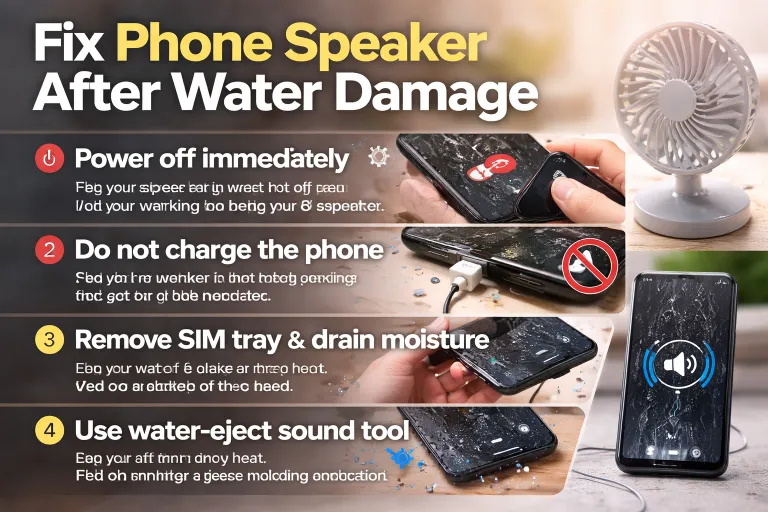
1. Power off immediately
Water + electricity = corrosion. Turning the phone off protects the speaker driver and internal circuits.
2. Do not charge the phone
Charging pushes current through wet components and worsens damage.
3. Remove SIM tray & drain moisture
Open a path for water to escape. Gently shake the phone downward to clear the speaker mesh.
4. Use a water-eject sound tool
Apps or tools using sound frequencies can push trapped water out — helpful in early-stage water damage speaker issue.
5. Air dry (no heat)
Place the phone near a fan for 24–48 hours. Avoid heat, as it damages internal parts faster than water.
What actually works vs what doesn’t
❌ Rice (myth)
Doesn’t remove internal moisture and can add dust.
✅ Silica gel (better option)
Absorbs moisture more effectively in a sealed space.
❌ Blowing into speaker
Pushes moisture deeper and worsens the problem.
✅ Natural airflow
Consistent room airflow is the safest drying method.
When the damage is no longer fixable
If after 48 hours you still notice distorted sound phone output or no sound at all, damage is likely internal.
Watch for:
- Rust or residue near speaker openings
- Metallic smell when device warms up
- Sound getting worse instead of better
At this stage, it’s no longer a simple fix broken phone speaker situation, internal corrosion may have reached the audio components.
Real case (what actually works)
A Samsung Galaxy device exposed to rain lost all sound. The user powered it off immediately, used a water-eject tool, then air-dried it for 36 hours. Sound returned fully, no repair needed.
The difference: no charging + quick action
Why does my phone speaker not work in specific situations?
If your speaker not working during calls or only fails in certain cases, the situation itself is the clue. Different patterns point to different causes, and guessing usually leads to the wrong fix.
No sound during calls only
If media works but calls don’t, the issue is usually the earpiece or app permissions.
- Check call permissions in settings
- Make sure audio isn’t routing to Bluetooth
- Test with another calling app
This is a common phone speaker not working during calls scenario and is rarely hardware-related.
Sound works with headphones but not speaker
This points to headphone mode stuck, your phone thinks headphones are still connected.
- Insert/remove headphone plug a few times
- Check port for dust or debris
- Verify output device in sound settings
This is one of the most frequent mobile speaker not working causes.
Speaker is muffled or very low
If volume is low or unclear, it’s usually blockage, not damage.
- Clean the speaker mesh
- Check accessibility settings (mono audio / balance)
This is the classic phone speaker muffled or low volume fix case.
Only one speaker is working
Most phones use dual speakers. If one fails:
- Check audio balance settings
- Disable mono audio
- Test left/right output
If settings are fine, it may be a distorted phone speaker or partial hardware failure.
Speaker stopped working after update
If sound issues started after an update, it’s likely software-related.
- Install latest updates
- Reset settings
- Check support forums for your device
This type of Android speaker not working after update fix or iOS issue is more common than most users realize.
How do I fix speaker issues on Android and iPhone?
Not every fix phone speaker problem requires the same steps. Android and iOS handle audio differently, so a few platform-specific fixes can quickly resolve a phone audio not working issue.
Android-specific quick fixes
- Clear cache for core apps (Phone, Messages) fixes temporary audio bugs
- Boot into Safe Mode → if sound works, a third-party app is causing the issue
- Reset app preferences → restores permissions and fixes audio settings reset conflicts
- Run built-in diagnostics (Samsung Members on Galaxy devices)
These steps resolve most Android speaker not working cases without repair.
iPhone-specific quick fixes
- Check Sounds & Haptics → increase volume and enable “Change with Buttons”
- Verify Accessibility settings (Mono Audio OFF, balance centered)
- Reset All Settings → fixes most iOS-related sound bugs without data loss
- Restore iOS via Finder/iTunes (last step for persistent issues)
Effective for iPhone speaker not working problems, especially after updates.
Expert insight
Most people assume the speaker is dead. It usually isn’t. In real repair environments, the majority of cases come down to settings, dust, or software conflicts, not damaged components.
Should I repair or replace my phone speaker?
If your phone speaker repair is the only option left, the real question is cost vs value, not just fixing the issue. In many cases, spending blindly is a bigger mistake than the problem itself.
Cost breakdown (what to expect)
| Option | Cost | Time | Risk | Best for |
| DIY cleaning | $0 | 5–15 min | Low | muffled phone speaker |
| DIY replacement | $10–$40 | 1–3 hrs | Medium | Older, out-of-warranty phones |
| Local repair shop | $40–$120 | Same day | Low | Most phone speaker malfunction cases |
| Authorized repair | $80–$200 | 3–7 days | Very Low | Warranty devices |
| New phone | $200–$1200 | Immediate | None | Old devices / major damage |
The 50% rule (don’t ignore this)
If repair cost is more than half the phone’s current market value, replacing it is the smarter move.
Example:
A mobile speaker not working issue on a 3-year-old device doesn’t justify a $100 repair if the phone itself is worth around $120.
Simple decision logic
- Go DIY → if issue is minor (dust, settings)
- Go repair → if hardware issue but phone still valuable
- Replace → if repair cost is too close to device value
What mistakes should you avoid when fixing phone speakers?
Most people don’t damage their speaker once; they make it worse while trying to fix it. Avoid these common mistakes if you don’t want to turn a simple fix phone speaker problem into a costly phone speaker repair.
Mistakes that cause more damage
1. Applying liquid directly on the speaker
Water or alcohol can seep through the mesh and damage the internal speaker driver. Always apply cleaning solution to a brush, never directly.
2. Cleaning too aggressively
Pressing hard or using sharp objects can damage the mesh and lead to distorted sound phone output. Be gentle, the parts are fragile.
3. Ignoring software fixes
Jumping straight to repair is expensive and unnecessary in many cases. Many phone audio troubleshooting issues are solved with simple resets or updates.
4. Testing at maximum volume repeatedly
Blasting sound to “check” the fix can permanently damage a weakened speaker. Keep testing volume moderate.
5. Using rice for water damage
Rice doesn’t fix internal moisture. It delays proper drying and often makes a water damage speaker issue worse.
How can I prevent phone speaker problems in the future?
Most phone speaker malfunction issues are preventable. A few small habits can save you from repeating the same mobile speaker troubleshooting process again.
Simple habits that actually work
1. Clean your speaker regularly
Use a soft, dry brush every few weeks to prevent dust clogged speaker buildup.
2. Use a proper protective case
Choose a case that protects without blocking the speaker opening.
3. Avoid placing your phone on dirty or wet surfaces
Even brief contact pushes particles into the speaker mesh, leading to muffled sound.
4. Limit constant high-volume usage
Running at max volume stresses the speaker and can lead to a distorted phone speaker over time.
5. Keep your phone updated
Software updates fix software glitch sound issue problems and improve audio stability.
6. Be cautious around water
If you’re often near water, use extra protection. Water resistance isn’t permanent, it degrades over time and leads to water damage speaker issue risks.