



Your phone drops. The screen goes black. And for a moment, it feels like everything is gone. If you’re searching how to recover photos from broken phone, here’s what most people don’t realise: in many cases, your photos are still there. A cracked screen, a dead battery, or even a phone that won’t turn on doesn’t usually delete your data, it just stops you from getting to it.
What causes real loss is what people do next. Charging a water-damaged phone, rushing into a reset, or installing random recovery apps can make things worse within minutes. This guide walks you through how to get photos off a broken phone, step by step, whether you’re using Android or iPhone, and whether you have a backup or not.
Before trying anything complicated, start with the quickest check. There’s a good chance your photos are already safe.
What Should You Do Immediately After Your Phone Breaks?
The first few minutes decide whether your broken phone photo recovery will be easy or impossible.
Mistakes That Can Permanently Delete Your Photos
- Don’t charge a water-damaged phone
- Don’t factory reset
- Don’t keep restarting a damaged device
- Don’t install random recovery apps
What to Do in the First 5 Minutes
- Turn off the phone immediately
- Identify the damage type
- Check if Google Photos or iCloud backup was active
- Stop using the device
- Follow one method at a time
The more you use a damaged phone, the higher the risk of overwriting your data.
Can You Actually Recover Photos From a Broken Phone?
In many cases, yes, but not always. If you’re trying to recover photos from broken phone, it mostly depends on whether the phone’s internal storage is still intact. Screen damage or battery failure usually doesn’t affect stored data.
When Recovery Is Possible
You can often retrieve photos from a damaged phone if:
- The phone still powers on (even partially)
- Damage is limited to screen or battery
- Photos are backed up to Google Photos or iCloud
- USB access or USB debugging was enabled
In these cases, recovery is usually straightforward using a computer, cloud backup, or basic tools.
When Recovery Becomes Difficult
Recovery is harder if:
- Internal storage (motherboard) is damaged
- A factory reset has been performed
- The phone is locked or encrypted
- Severe water or electrical damage exists
Here, standard methods often fail, and you may need a professional data recovery service.
Reality Check
Even advanced labs can’t recover everything. Success depends on hardware condition, not just software.
Check This First: Your Photos Might Already Be Safe
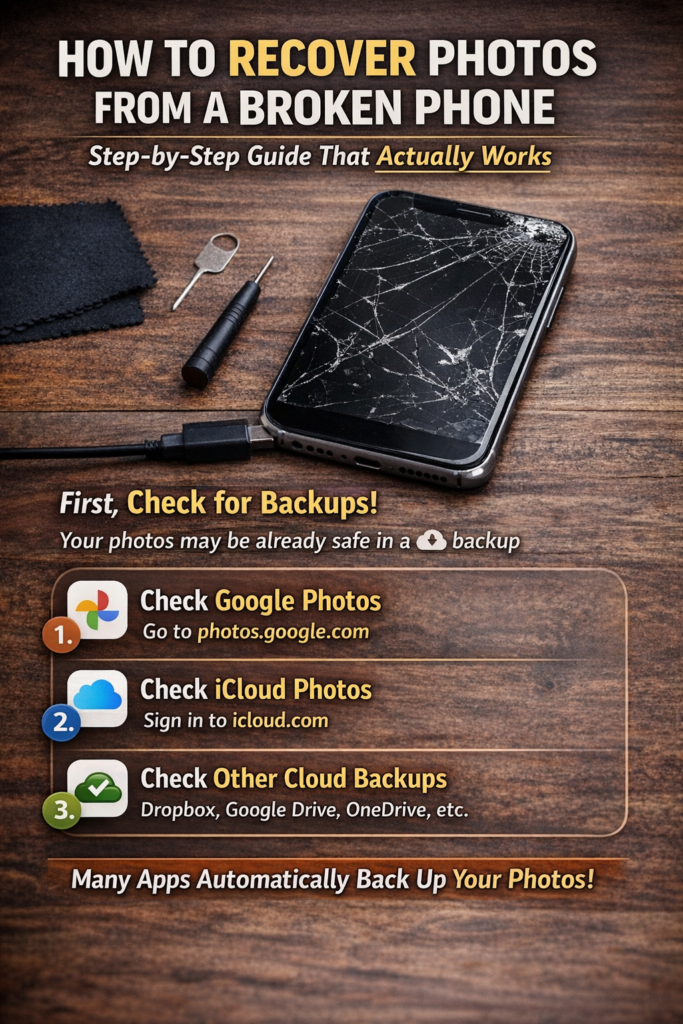
Before trying any broken phone photo recovery method, check backups.
Google Photos (Android)
Go to photos.google.com and sign in. If backup was on, your photos are already there.
iCloud Photos (iPhone)
Visit icloud.com/photos and log in. Synced photos are instantly available.
Other Backups
- Samsung Cloud
- OneDrive
- Dropbox
Always check this first, it often solves everything.
Quick Reality Check
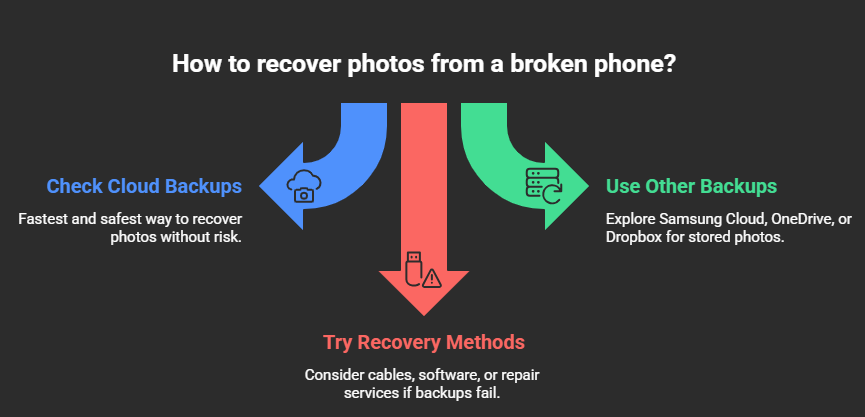
Cloud backup isn’t just a feature, it’s the fastest and safest way to get your photos back without risk. Before trying cables, software, or repair services check this first.
How to Recover Photos From a Broken Phone Using a Computer
If cloud backup didn’t help, this is the most reliable way to recover photos from broken phone. A direct USB connection lets you access internal storage and copy your photos safely.
Android: Transfer Photos via USB (Step-by-Step)
- Connect your phone to a PC using a data USB cable
- Unlock the phone and select File Transfer (MTP)
- Open File Explorer → This PC → Your Device
- Go to: Internal Storage → DCIM → Camera
- Copy photos to your computer
This method works best when the phone is still responsive.
If Your Phone Is Not Detected
- Try a different USB cable (many are charge-only)
- Switch USB ports
- Install official device drivers
- Restart both phone and computer
Broken Screen? Use This Simple Trick
If you can’t tap the screen, connect a USB OTG adapter + mouse. This lets you control the phone and enable file transfer, making it possible to get photos off a broken phone even with a black screen.
iPhone: Recover Photos Using Finder or iTunes
- Connect your iPhone to a computer
- Tap “Trust This Computer” (if screen works)
- Open Finder (Mac) or iTunes (Windows)
- Click Back Up Now
- Use tools like iMazing to extract photos
This is the safest way to retrieve photos from damaged iPhone without risking data loss.
Pro Tip (Light Commercial Intent)
If your phone isn’t detected or the screen is completely dead, basic methods may fail. In that case, recovery software or a professional data recovery service becomes the better option.
How to Recover Photos From a Broken Screen Phone
A broken screen doesn’t mean your photos are gone. In most cases, the phone still works, you just can’t control it.
Here’s how to recover photos from broken smartphone screen step by step.
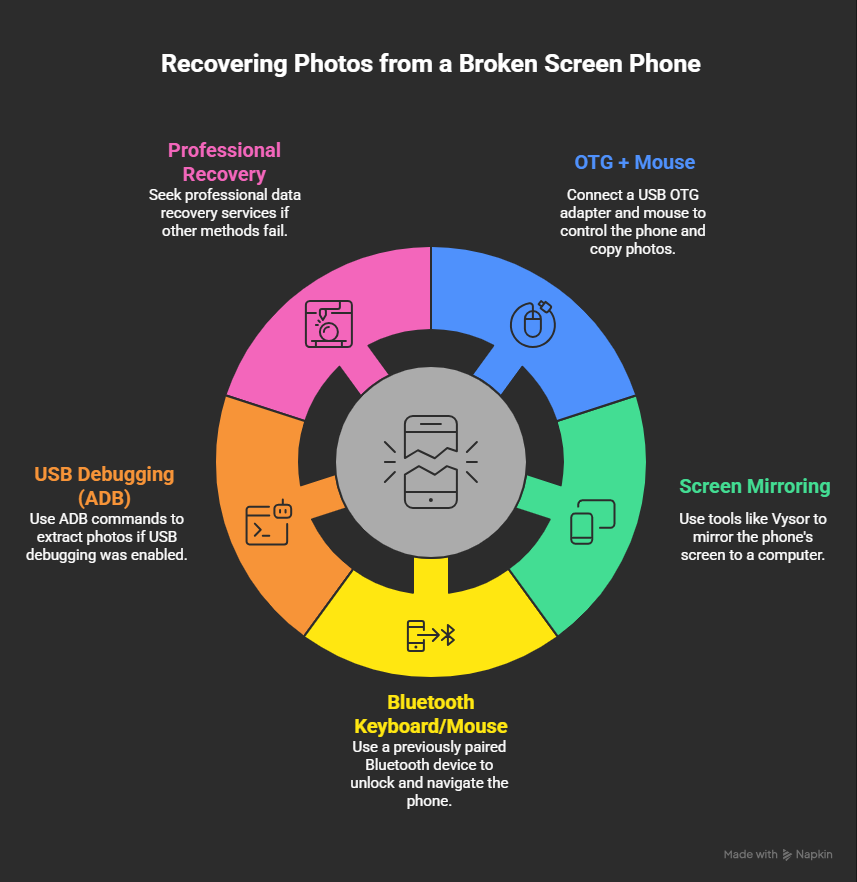
Use OTG + Mouse (Fastest Method)
- Connect a USB OTG adapter to your phone
- Plug in a USB mouse
- A cursor will appear on screen
- Unlock the phone and enable file transfer
- Copy photos to a computer
This is the easiest way to get photos off a broken phone without repairing it.
Mirror Your Screen to a Computer
If the display is black but the phone is working:
- Use tools like Vysor
- Connect via USB
- Control your phone from your computer
Helps you access photos when the screen is visible but not usable.
Try Bluetooth Keyboard or Mouse
If your device was paired earlier:
- Turn on the Bluetooth device
- It may reconnect automatically
- Use it to unlock and navigate
Works well on devices like Samsung Galaxy and Google Pixel
Advanced Option: USB Debugging (ADB)
If USB debugging was enabled before damage:
- Use ADB (Android Debug Bridge)
- Extract photos via computer commands
This method is technical but useful when the screen is completely unresponsive.
When This Won’t Work
If the phone doesn’t respond at all, or hardware is damaged, these methods may fail. In that case, you’ll need recovery software or a professional data recovery service.
How to Recover Photos From a Phone: That Won’t Turn On
If your phone won’t turn on, recovery is still possible in some cases.
Force Restart
- Android: Power + Volume Down
- iPhone: Volume Up → Down → hold Side button
Leave it charging 20–30 minutes before trying.
Recovery Mode
- Android: fix boot issues
- iPhone: restore via Finder or iTunes
When to Stop
If there’s no response, it’s likely hardware failure.
Reality Check
If the internal storage is still intact, recovery is often possible, even if the phone won’t turn on. But repeated attempts can make things worse. Try a few safe steps, then stop and escalate if needed.
How to Recover Photos From a Water-Damaged Phone
Water damage doesn’t always erase your data, but acting fast is critical. The wrong step can turn a recoverable situation into permanent loss.
Avoid This: Rice Myth
Rice doesn’t fix internal damage. Use a dry, ventilated area instead.
What to Do
- Turn off phone
- Remove SIM/SD
- Dry exterior
- Leave 24–48 hours
- Avoid heat
After Drying
- Transfer files
- Check Google Photos or iCloud
- Back up immediately
At this point, use a professional data recovery service to retrieve photos from damaged phone safely..
Important Insight
Water damage gets worse over time, not better. The faster you act, the higher your chances of recovery.
How to Recover Photos From a Broken Phone Without Backup
No backup. No cloud. No access. In this case, your only option is to use recovery tools that scan internal storage and try to recover photos from broken phone before they’re overwritten.
How Recovery Software Works (Simple)
When photos are deleted or inaccessible, they’re not immediately erased, just hidden. Recovery tools scan your phone’s storage and try to extract photos from broken Android or iPhone before new data replaces them. The sooner you act, the better your chances.
Best Photo Recovery Tools (Quick Comparison)
Tool | Device | Use Case | Price |
Dr.Fone | Android + iOS | Broken phone recovery | Paid |
EaseUS | Android + iOS | Beginner-friendly | Paid |
Tenorshare | Android + iOS | Deep scan recovery | Paid |
iMazing | iPhone | Backup extraction | Paid |
DiskDigger | Android | Basic recovery | Free / Paid |
Which Tool Should You Choose?
- Dr.Fone → Best overall for broken devices
- Tenorshare → Works well on unresponsive phones
- EaseUS → Simple interface for beginners
- DiskDigger → Good free starting point
If your phone is still partially working, these tools can help you retrieve photos from damaged phone without repair.
Important Warning (Don’t Skip)
- Recovery is not guaranteed
- Installing apps can overwrite your data
- Only use trusted tools
If the phone is completely dead, skip this step and go straight to a professional data recovery service.
When Should You Use a Professional Data Recovery Service?
If basic methods fail, this is your last and often most effective option to recover photos from broken phone.
When You Should Stop DIY
Consider a professional phone data recovery service if:
- The phone won’t turn on at all
- Recovery software finds nothing
- Damage involves water, fire, or heavy impact
- Photos are critical (not replaceable)
At this stage, DIY attempts can reduce recovery chances.
How Much Does Data Recovery Cost?
- UK: £150 – £550
- US: $200 – $700
Cost depends on damage level and recovery complexity. Advanced labs like DriveSavers, Ontrack, and Secure Data Recovery offer higher success rates, but charge more.
What to Look For (Avoid Scams)
- “No data, no fee” policy
- Certified cleanroom facility
- Experience with your device type
- Clear pricing before work starts
Avoid services that demand full payment upfront.
Smart Decision Tip
If your phone is completely dead or heavily damaged, professional recovery isn’t optional, it’s the only realistic way to retrieve photos from damaged phone. If your photos matter, don’t risk further damage, get a professional evaluation before it’s too late.
Can You Recover Deleted Photos From a Broken Phone?
Yes, but only if you act quickly. If you’re trying to recover deleted photos from broken phone, your chances depend on whether the data has been overwritten.
Check Recently Deleted First (Fastest Method)
- Google Photos → Trash (stored for 60 days)
- iCloud Photos → Recently Deleted (stored for 30 days)
If your photos are there, you can restore them instantly no tools needed.
Act Fast Before Data Gets Overwritten
When photos are deleted, they aren’t erased immediately, they’re replaced over time.
- More storage available = longer recovery window
- Less storage = faster data loss
To improve success:
- Stop using the phone immediately
- Avoid taking new photos or installing apps
- Use recovery tools as soon as possible
Reality Check
If data is already overwritten, recovery becomes almost impossible, even with advanced tools. Speed matters more than method here.
How to Recover Photos From a Locked Broken Phone
If your phone is locked and damaged, recovery gets complicated quickly. Modern smartphones use strong encryption. Without the correct PIN, password, or biometric unlock, it’s often not possible to directly recover photos from locked broken phone, even if the data is still there.
What You Can Try First
- If part of the screen works, try entering your PIN carefully
- On Android, use Find My Device to access your account
- On iPhone, check iCloud and restore your data to another device
These are the safest ways to retrieve photos from damaged phone without bypassing security.
When Recovery Becomes Unlikely
- Screen is fully unresponsive
- No cloud backup available
- Device is locked and encrypted
In this case, standard recovery methods usually won’t work.
Final Reality Check
Some advanced labs can attempt recovery on locked devices, but:
- Success rates are lower
- Costs are higher
- Access is not guaranteed
With locked phones, access is the biggest barrier, not the damage itself.
Biggest Myths About Broken Phone Photo Recovery
There’s a lot of bad advice online about broken phone photo recovery and following it can cost you your data. Let’s clear a few things up.
- Screen broken = data gone
- Free tools = same as paid
- Factory reset is reversible
- Professionals can recover everything
What This Means
Don’t rely on myths, use the right method early if you want to retrieve photos from damaged phone successfully.
How to Make Sure You Never Lose Photos Again
Once you’ve managed to recover photos from broken phone, the next step is simple, don’t let it happen again.
Use Automatic Cloud Backup
Google Photos (Android)
- Open Google Photos
- Go to Settings → Backup
- Turn backup ON
Your photos will upload automatically over Wi-Fi.
iCloud Photos (iPhone)
- Go to Settings → iCloud → Photos
- Enable iCloud Photos
Your images sync across all Apple devices.
Follow the 3-2-1 Backup Rule
- Keep 3 copies of your photos
- Store them on 2 different platforms
- Keep 1 backup off-device
Example:
- Phone storage
- Cloud backup (Google Photos / iCloud)
- External drive
Simple Truth
People who don’t lose photos aren’t lucky, they use backups. It takes a few minutes to set up, but saves years of memories.
Final Tip (Retention + Internal Intent)
If your phone is already damaged, don’t wait, follow the recovery steps in this guide before setting up backup.
Frequently Asked Questions
How do I recover photos from a broken phone without a computer?
Check Google Photos or iCloud first. If backup was enabled, your photos are already there.
For Android, you can also use a USB OTG adapter with a flash drive to copy files directly.
Can I get photos off a broken Android phone?
Yes, in most cases. Connect your phone to a computer, enable file transfer, and copy photos from the DCIM folder. If the screen doesn’t work, use an OTG mouse to control the device.
What if my phone won’t turn on, can I still recover photos?
Start with a force restart and charge the device for at least 20–30 minutes. If it still doesn’t respond, you may need a professional data recovery service to recover photos from a dead phone.
Does rice really fix a water-damaged phone?
No. Rice doesn’t remove internal moisture and can delay proper recovery. Use a dry, ventilated space instead and keep the phone powered off.
What is the best software to recover photos from a broken phone?
Popular tools include Dr.Fone, Tenorshare UltData, and EaseUS MobiSaver. For iPhone backups, iMazing works well. Start with trusted tools only.
How much does phone data recovery cost?
- UK: £150–£550
- US: $200–$700
Always choose services with a “no data, no fee” policy.
Can deleted photos be recovered from a broken phone?
Yes, but only for a limited time. Check Recently Deleted in Google Photos (60 days) or iCloud (30 days). After that, recovery depends on whether data is overwritten.
Is it possible to recover photos from a locked broken phone?
It’s difficult due to encryption. If backup exists, restore to another device. Otherwise, options are limited and may require specialist services.
How do I extract photos from a broken iPhone?
Connect it to a computer, create a backup using Finder or iTunes, then extract photos using tools like iMazing. If the screen is unusable, iCloud is the best option.
What is the 3-2-1 backup rule?
Keep:
- 3 copies of your data
- on 2 different storage types
- with 1 stored off-device
This reduces the risk of permanent data loss.
Can you recover photos after a factory reset?
In most cases, no, a factory reset wipes your phone’s storage and starts overwriting data almost immediately. That means even if traces of photos remain, they get replaced very quickly. In rare cases, advanced tools may recover something, but realistically, you shouldn’t rely on it.
When should I stop trying to recover photos myself?
If your phone isn’t turning on, shows hardware damage, or recovery tools aren’t finding anything, it’s time to stop. Trying multiple fixes can actually reduce your chances by damaging the data further. At that point, a professional data recovery service is your safest option.
Conclusion: The Smart Way Forward
Most of the time, your photos aren’t gone, you’ve just lost access to them. And that’s exactly what this guide helped you fix. If you’re trying to recover photos from broken phone, follow the right order:
- Check cloud backup first
- Use USB or OTG methods
- Try recovery tools
- Go for professional help if needed
The biggest mistake isn’t a broken phone, it’s using the wrong method at the wrong time.
What Matters Most
Act early. Keep it simple. Don’t try everything at once. The sooner you take the right step, the better your chances of getting your photos back.
Final Action
Before you leave, check your Google Photos or iCloud right now. Your photos might already be there. And once you recover them, set up automatic backup so you never face this situation again. Got your photos back? Share what worked, it might help someone else in the same situation.