


That Morning Your Samsung Let You Down
You plugged your Samsung in before bed. You woke up expecting a full battery. It was at the same percentage as when you put it on the charger. Or worse, it had dropped.
Maybe it happened in the middle of the day. You plugged in, saw the charging icon appear, and walked away. Twenty minutes later, the battery was still sitting at 34%.
A customer walked into Fone World last month with a Samsung Galaxy A54 he had been dealing with for six months. He had replaced two cables, tried three different adapters, and even bought a wireless charger. The problem was none of those things. It was a compacted lump of lint in the charging port that took us under three minutes to clear. Six months of frustration. Three minutes to fix.
Here is what almost nobody tells you. Most Samsung charging problems are not port problems. Most are not even hardware problems. The fixed hierarchy matters enormously, and starting in the wrong place wastes money that did not need to be spent.
This guide gives you every cause ranked by frequency, every fix in the right order, and honest cost data for every level of Samsung charging repair.

What This Guide Covers
Samsung charging problems affect more Galaxy devices than almost any other fault category. According to Samsung authorized service center data, charging port and battery issues account for approximately 28% of all Galaxy device repairs annually.
This guide covers:
-
- The 8 most common Samsung charging problems ranked by frequency
-
- The port cleaning method that resolves the majority of cases for free
-
- How to tell whether your cable, adapter, port, battery, or software is the real fault
-
- Why the moisture-detected warning appears and how to clear it safely
-
- Why Samsung fast charging stops working and how to restore it
-
- What Samsung software updates do to charging performance
-
- Honest repair costs from $0 DIY fix through to $200 board-level repair
Why Is My Samsung Phone Not Charging When I Plug It In?
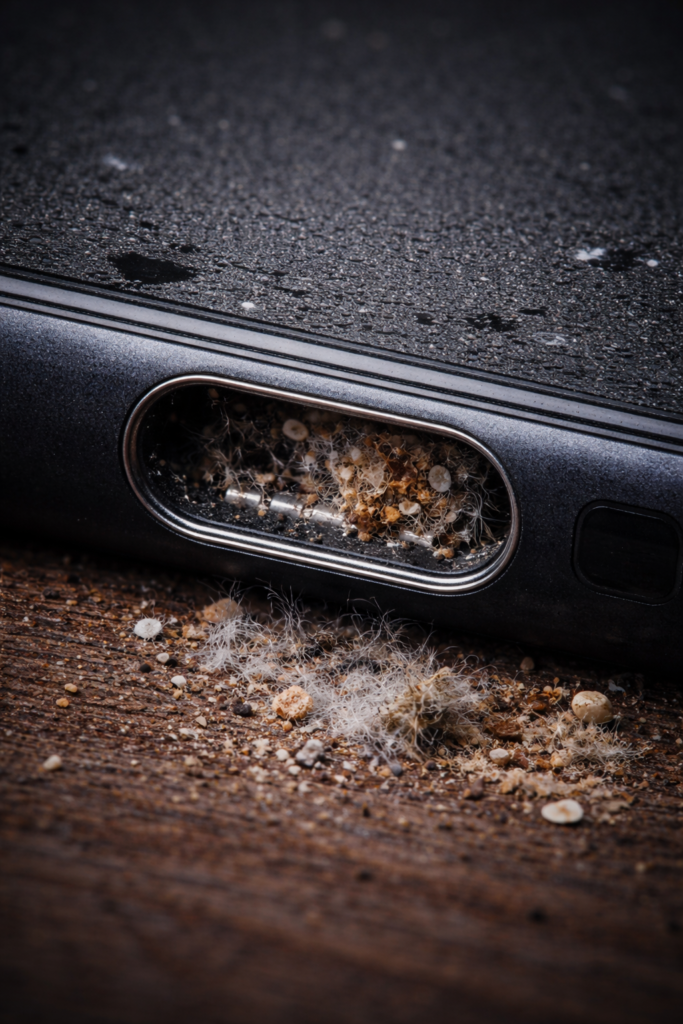
The most common reason a Samsung phone stops charging when plugged in is debris inside the USB-C charging port. Lint, dust, and pocket debris pack into the bottom of the port over time and prevent the cable from making proper contact.
Here are the 8 most common Samsung charging problem causes ranked by how frequently we see them:
| Cause | Frequency | First Fix |
| Port debris or lint blockage | Very common | Clean the port |
| Damaged or incompatible cable | Common | Replace cable |
| Faulty or non-original adapter | Common | Replace adapter |
| “Moisture detected” warning | Moderate | Dry and wait |
| Software or One UI update issue | Moderate | Reset settings |
| Degraded battery | Moderate | Battery check |
| Damaged charging IC chip | Less common | Professional repair |
| Physical charging port damage | Less common | Port replacement |
The critical insight here is that most people jump straight to port replacement when the problem is actually a cable, a software setting, or a two-minute cleaning job.
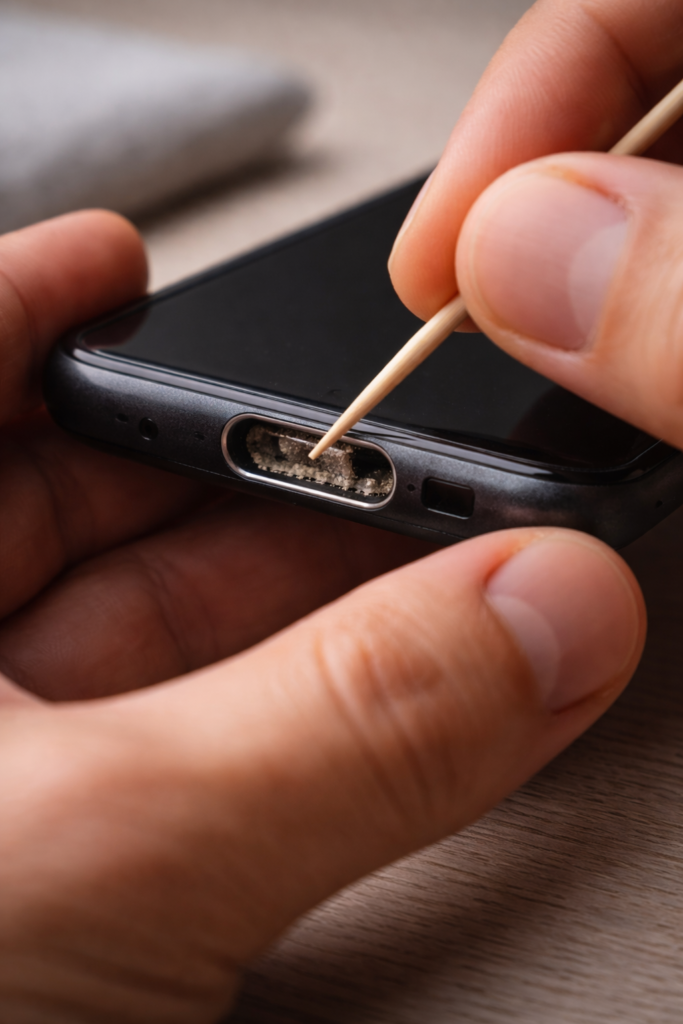
How Do I Clean My Samsung Charging Port to Fix the Problem?
Cleaning the charging port is the single most effective first step for any Samsung charging problem. It is free, takes under three minutes, and resolves a significant proportion of cases entirely.
Step-by-Step Samsung Charging Port Cleaning:
-
- Power the Samsung phone completely off
-
- Look inside the USB-C port with a flashlight. If you see dark compacted material at the bottom, that is lint.
-
- Use a wooden toothpick or a plastic SIM card tool to gently loosen the debris from the bottom of the port. Work carefully from side to side.
-
- Use a can of compressed air in short bursts to clear the loosened debris
-
- Power the phone back on and test charging with your original cable
Safe tools: wooden toothpick, plastic SIM ejector tool, compressed air, dry microfiber cloth.
Tools that cause damage: metal objects, cotton swabs (leave fibers behind), and your own breath (moisture accelerates corrosion).
The Samsung Galaxy A54 customer mentioned at the start of this guide had six months of unreliable, slow charging resolve completely after this process. The port looked clean to the naked eye, but a small amount of compacted lint at the very bottom was preventing full cable contact.
If cleaning resolves your Samsung charging problem, the repair cost is zero.
Could My Cable or Adapter Be Causing the Samsung Charging Issue?
Yes, and this is the second most overlooked cause of Samsung charging problems after port debris.
Samsung Adaptive Fast Charging and Super Fast Charging have specific power delivery requirements. A cable that does not carry the required wattage, a third-party adapter that misrepresents its output, or a counterfeit charger that looks genuine will all prevent proper charging or deliver charge too slowly to be useful.
The swap test is the fastest diagnostic you can run:
-
- Try a different USB-C cable with your existing adapter
-
- Try your existing cable with a different adapter
-
- Try a known-working original Samsung cable and adapter together
-
- Note which combination changes the charging behavior
| Adapter | Rated Output | Compatible Samsung Models |
| Samsung EP-TA800 25W | 25W | Galaxy S21, S22, A54, A35 |
| Samsung 45W adapter | 45W | Galaxy S22 Ultra, S23 Ultra, S24 Ultra |
| Samsung Super Fast Charging 2.0 | 45W | Galaxy Z Fold 5, Z Flip 5 |
| Third-party USB-PD | Varies | Charges slowly, risk of IC damage |
A Samsung Galaxy Z Fold 5 user came to Fone World with a fast charging failure that had persisted for three weeks. The fault was traced to a counterfeit 45W adapter purchased online. The original adapter had been lost, and the replacement looked identical but delivered only 12W. Swapping to a genuine Samsung 45W adapter resolved the Samsung charging problem immediately with no hardware repair needed.
Here is the honest warning most guides skip. Cheap third-party USB-C cables and adapters cause damage to the charging IC chip inside the Samsung phone over time. This is not a hypothetical risk. We see it regularly. The IC chip damage creates a fault that looks and feels exactly like a port problem, costs significantly more to repair, and would never have happened with an original Samsung cable.
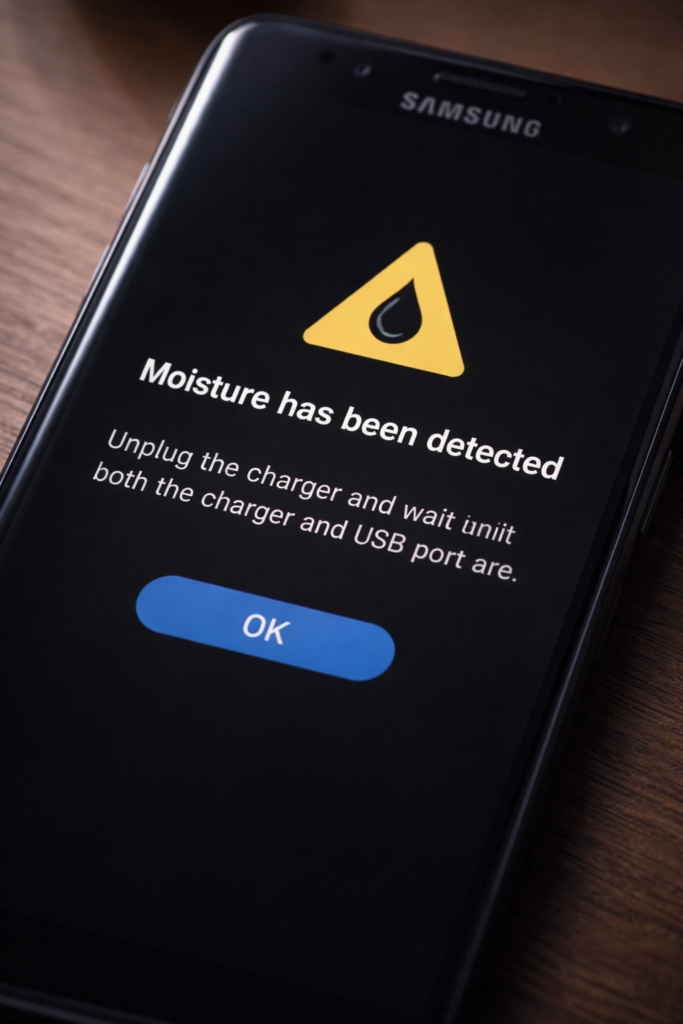
What Does the Samsung Moisture Detected Warning Mean and How Do I Fix It?
The Samsung moisture detected warning is one of the most frequently searched Samsung charging issues, and it is one of the least well-explained topics in competitor guides.
When Samsung detects humidity or moisture near the USB-C charging port, it blocks wired charging to prevent a short circuit from damaging the charging IC chip or the battery. This is a protective feature, not a fault.
How to clear the Samsung moisture detected warning safely:
-
- Remove the charging cable immediately
-
- Tap the phone face-down gently against your palm to shake out any moisture
-
- Place the Samsung phone in a dry, ventilated area for 30 to 60 minutes
-
- Do not use a hair dryer or heat source on the port
-
- Do not put the phone in rice. Rice introduces debris into the port and does nothing useful for moisture.
-
- After 30 to 60 minutes, attempt to charge again
What others don’t tell: The Samsung moisture detected sensor is sensitive enough to trigger from high humidity in a bathroom or kitchen, not just direct water contact. If you get the warning in a dry environment after being somewhere humid, you are probably experiencing a false trigger. The resolution is the same: wait in a dry environment.
During the moisture detected warning period, use Samsung Wireless PowerShare or a standard wireless charging pad if you need to maintain your battery level. The wireless charging pathway is unaffected by the moisture warning.
A Samsung Galaxy S23 customer came to us with a persistent “moisture detected” warning that had been showing for four days. The phone had not been near the water. The port had a small amount of debris that was triggering the sensor. A professional port cleaning resolved both the debris and the false moisture detected warning simultaneously.
Why Is My Samsung Charging Slowly Even With a Fast Charger?
Samsung’s slow charging is frustrating precisely because everything appears to be working correctly. The cable is connected. The adapter is plugged in. The icon is showing. But after an hour the battery has barely moved.
The most common causes of a Samsung phone charging slowly are the following:
-
- The charging cable does not support the required wattage
-
- Samsung Adaptive Fast Charging is disabled in settings
-
- The phone is overheating and thermally throttling the charging speed
-
- Background apps are consuming power faster than the charger delivers it
-
- The battery has degraded below the point of accepting fast charge rates
How to enable Samsung Adaptive Fast Charging:
Settings, Battery and Device Care, Battery, More Battery Settings, Fast Charging: toggle on.
Also check: Super Fast Charging is a separate toggle on the Galaxy S21 and newer. Both should be enabled if your adapter supports them.
The fastest possible charging method for any Samsung device: Enable airplane mode, turn the screen off, remove the phone from its case, and charge in a cool room. This eliminates every source of power consumption and heat during charging and delivers measurably faster results.
Could a Samsung Software Update Have Caused My Charging Problem?
Yes. This is a cause that almost every competitor guide ignores entirely, and it accounts for a meaningful proportion of Samsung charging complaints.
Samsung One UI and Android updates have caused charging regressions on multiple occasions by changing battery optimization settings, disabling fast charging by default, or introducing bugs in the power management system.
How to diagnose a software-related Samsung charging issue:
-
- Boot the Samsung into Safe Mode by holding the power button, then holding Power Off on screen until Safe Mode appears
-
- Connect the charger in Safe Mode and observe the charging speed and behavior
-
- If charging works correctly in Safe Mode, a third-party app is interfering with power management
-
- If charging is still slow or fails in Safe Mode, the issue is a system-level software setting, not an app conflict
The targeted fix: Go to Settings, Battery, Device Care, Battery, and Background Usage Limits. Reset all background app restrictions. Then re-enable Fast Charging and Super Fast Charging manually as described above.
Myth-busting: A factory reset is rarely the right fix for a Samsung charging problem caused by a software update. Targeted settings resets resolve the vast majority of update-related charging issues without losing any personal data.
Why Is My Samsung Wireless Charging Not Working?
Samsung wireless charging problems are distinct from wired charging problems, and the diagnostic sequence is completely different.
The most common causes of Samsung wireless charging not working:
-
- The phone is not centered correctly on the charging pad
-
- A thick or metal phone case is blocking the Qi wireless signal
-
- Wireless charging is disabled in Samsung One UI settings
-
- The wireless charging pad is incompatible or faulty
-
- A Samsung software update disabled the wireless charging module
Step-by-step Samsung wireless charging troubleshooting:
-
- Remove the phone case completely and test directly on the pad
-
- Confirm wireless charging is enabled: Settings, Battery and Device Care, Battery, More Battery Settings, Wireless Charging
-
- Test with a different Qi-compatible wireless charging pad
-
- If the problem appeared after an update, reset the network and battery settings
A Samsung Galaxy Z Flip 5 user contacted Fone World after their wireless charging stopped working entirely following a One UI update. No hardware was faulty. The update had reset wireless charging to off in the settings menu. Re-enabling the toggle resolved the issue in under 30 seconds.
What Should I Do If My Samsung Phone Is Dead and Won’t Charge?
A completely dead Samsung that will not charge or turn on is alarming but not always serious.
The correct sequence for a dead Samsung phone:
-
- Use a different original Samsung cable and adapter. Plug directly into a wall outlet, not a USB hub or laptop port.
-
- Leave it connected for at least 15 minutes without touching it. The battery may be at zero and needs time to build a minimal charge before displaying any response.
-
- After 15 minutes, hold the power button and volume down button simultaneously for 10 seconds to force a restart.
-
- If nothing happens after 30 minutes, the fault is likely the battery, the charging IC chip, or, in rare cases, the charging port itself.
How Do I Know If My Samsung Charging Port Needs Replacing?
Your Samsung charging port likely needs professional replacement if
-
- The cable only charges when held at a specific angle
-
- The port visually shows bent or damaged pins inside
-
- Port cleaning produced no improvement in charging behavior
-
- The phone charges normally on a wireless pad, but not through any cable
-
- A professional diagnostic confirms internal pin damage
Samsung charging port replacement costs in 2025:
| Samsung Model | Independent Shop | Samsung Authorized |
| Galaxy S24 | $60 to $80 | $110 to $150 |
| Galaxy S23 | $55 to $75 | $100 to $140 |
| Galaxy A54 | $45 to $65 | $80 to $110 |
| Galaxy A35 | $40 to $60 | $75 to $100 |
| Galaxy Z Fold 5 | $80 to $120 | $150 to $200 |
Fone World carries charging port components for most Samsung Galaxy models and offers same-day replacement with a free diagnostic before any work begins. You know the cost before we start.
Could My Samsung Battery Need Replacing Instead of the Port?
This is the most important question in any Samsung charging problem diagnosis, and it is the one most repair shops skip.
A Samsung battery that has degraded significantly presents as a charging problem rather than a battery problem. Symptoms include:
-
- The Samsung charges to 100% but dies within hours
-
- Charging stops before reaching the full percentage
-
- The battery percentage jumps or drops unexpectedly
-
- The phone shuts down at 20% or 30% despite showing a charge remaining
Use AccuBattery on Android to measure your actual Samsung battery capacity versus original capacity. If health is below 80%, the battery is the primary issue regardless of what the charging behavior looks like.
A Samsung Galaxy S24 user spent money on a charging port replacement at a competitor before coming to Fone World. Our diagnostic identified that the battery had been the original fault. Port replacement had done nothing because the port was never the problem. Battery replacement resolved the Samsung charging problem completely.
Samsung battery replacement costs in 2025:
| Samsung Model | Independent Shop | Samsung Authorized |
| Galaxy S24 | $50 to $70 | $90 to $120 |
| Galaxy S23 | $45 to $65 | $85 to $110 |
| Galaxy A54 | $35 to $55 | $70 to $90 |
| Galaxy A35 | $30 to $50 | $65 to $85 |
How Do I Prevent Samsung Charging Problems From Happening Again?
Prevention is significantly cheaper than repair. These habits protect both the charging port and the battery over the long term:
-
- Use only original Samsung cables and adapters
-
- Keep the USB-C port covered with a dust cap between uses
-
- Avoid charging inside a case that traps heat
-
- Keep battery charge between 20% and 80% where practical
-
- Enable Protect Battery in settings: Battery and Device Care, Battery, More Battery Settings, Protect Battery
-
- Enable Adaptive Charging for overnight charging protection